Visual Editor
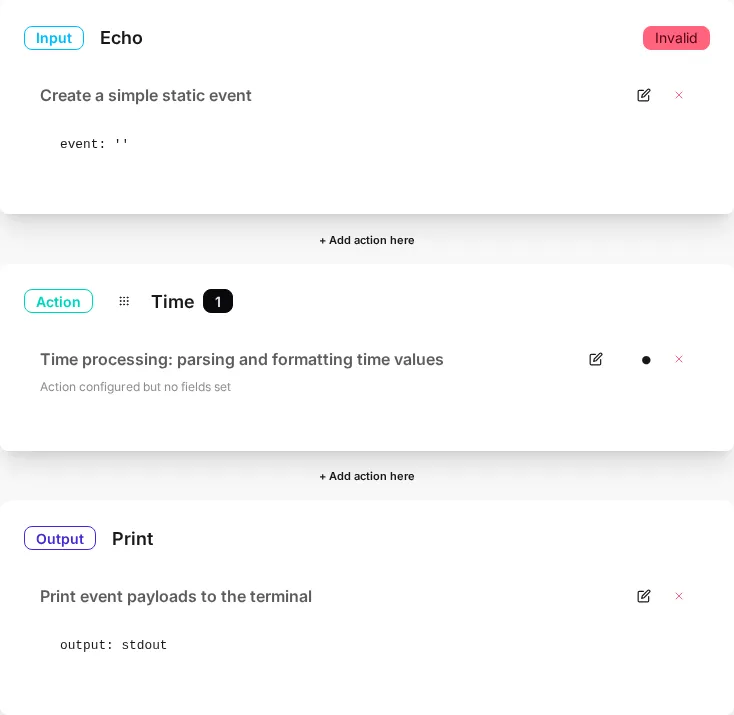
The Visual Editor is the fastest way to build and test a pipeline (job). You configure an input, chain actions, and pick an output — then validate the event flow with Run or Run & Trace before staging and deploying.
Editor layout
- Input (left): where events come from. Pick the connector, parsing options, and (when supported) triggers. See the Inputs catalog.
- Actions (middle): transformations and enrichment steps applied in order. See Actions and Transforming data.
- Output (right): where processed events are delivered. See the Outputs catalog.
Typical workflow
- Create (or clone) a job and give it a stable name early.
- Configure the input, then add actions one by one.
- Use Run for a quick smoke test, then Run & Trace to inspect how each action changes events. See Running a job.
- Fix warnings surfaced in the editor or the Issues panel. See Logs & Issues.
- Save, then Stage to create an immutable version for deployment.
- Deploy the staged version to a worker (or automate it via CI/CD automation).
YAML tab (pipeline as code)
Switch to the YAML tab to work directly with the underlying job definition. The editor renders the current pipeline as YAML, validates your changes as you type, and lets you copy or download the definition when you need to share it. Internally, the job is stored as JSON, but the UI round-trips through YAML for readability.
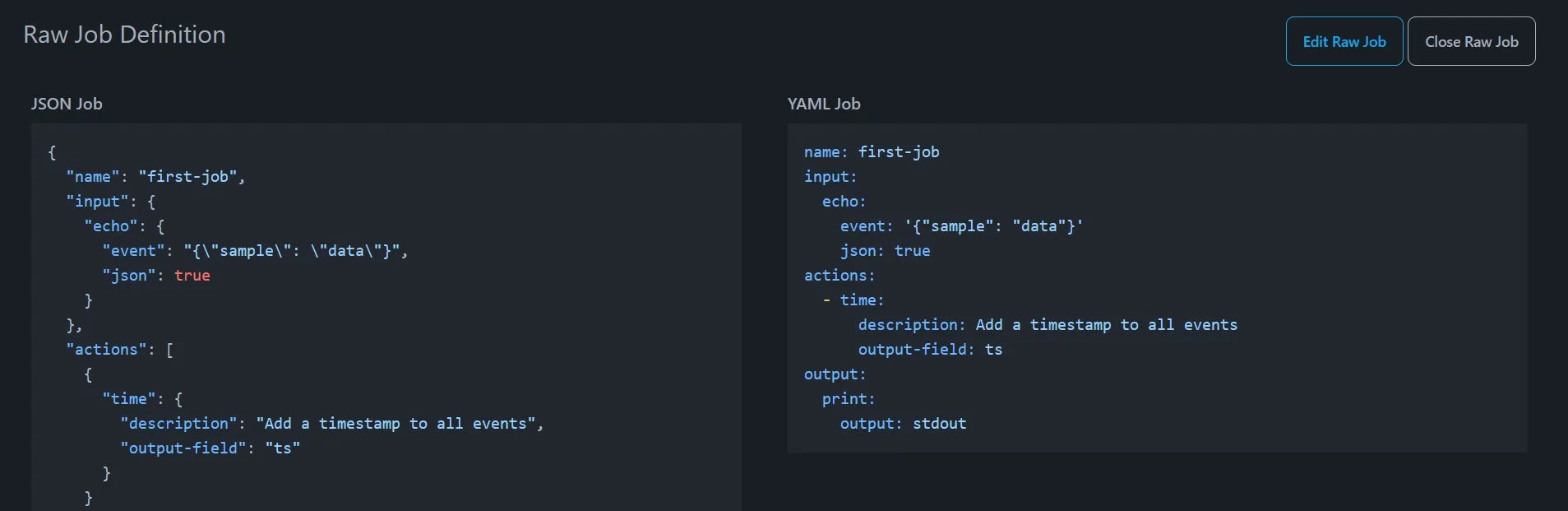
With very large jobs the YAML editor can be faster than the visual canvas for precise adjustments to inputs, actions, or outputs. It is also the easiest way to review diffs in Git when you export jobs and treat them like code.